PSC Thulasi 2026: Login, Registration, My Profile & Hall Ticket
PSC Thulasi is the official Kerala Public Service Commission (KPSC) portal for people applying to Kerala state government jobs, and the one correct address is thulasi.psc.kerala.gov.in/thulasi/. From a single free account you can log in, open your My Profile dashboard, register through One Time Registration (OTR), apply for posts, download your hall ticket, and check your results.
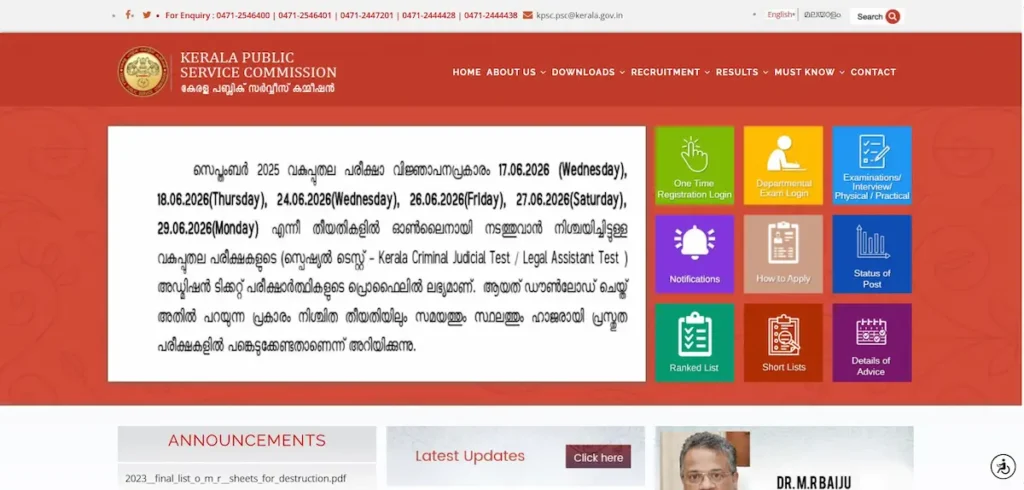
What do you need right now?
The correct PSC Thulasi address, and how to avoid fake sites
The only official login address is thulasi.psc.kerala.gov.in/thulasi/, and the commission’s main site is keralapsc.gov.in. Both end in .gov.in. The terms people often type into search, such as “psc thulasi gov in,” “kerala psc thulasi gov in,” “ww kerala psc thulasi com,” or any address ending in “.com,” are misspellings and do not reach the official portal. Lookalike pages and paid ads sometimes copy the Thulasi name to collect logins, so it pays to verify the domain every time.
Before you type your password, check three things:
- The web address ends in .gov.in.
- The portal is free; it never asks for a fee to register or log in.
- Do not enter your details through links in ads or forwarded messages. Type the address yourself, or open it from a saved bookmark.
How to log in to PSC Thulasi (step by step)
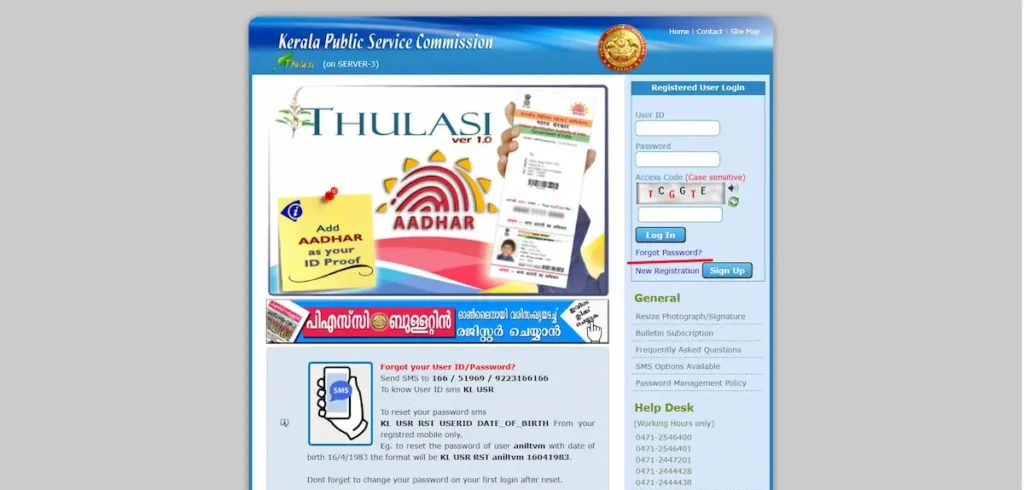
To log in, open the portal, enter your three login details, and press Login to reach your profile.
- Open thulasi.psc.kerala.gov.in/thulasi.
- Go to the Login section for registered users on the portal homepage.
- Type your User ID.
- Type your password. It is case-sensitive, so check your capital letters.
- Type the access code shown in the captcha box. Refresh it if the characters are hard to read.
- Press Login. You land on your My Profile dashboard.
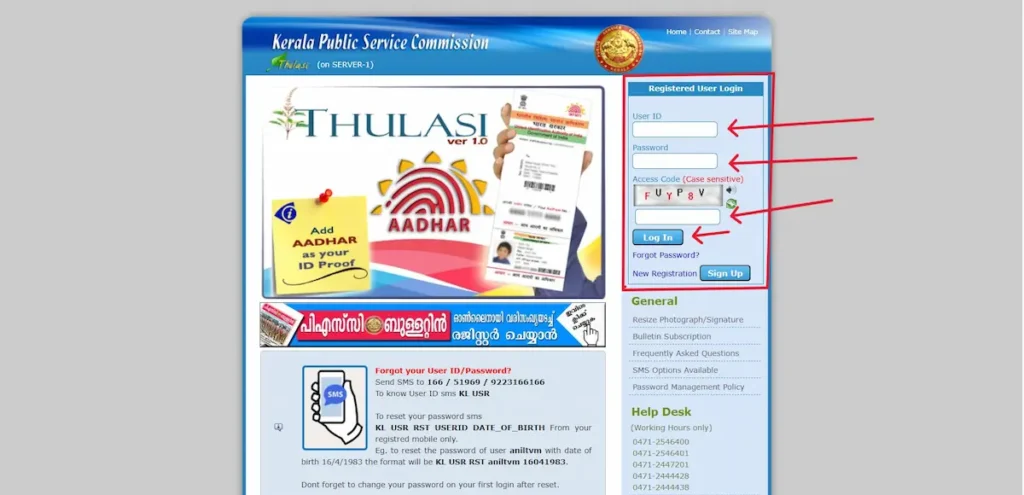
If the message “your browser is not validating the data properly” appears, see the troubleshooting section on this page for the fix.
PSC Thulasi My Profile: what it holds and how to open it
My Profile is the dashboard you reach straight after login, and it holds everything KPSC has on record for you. That includes your personal details, educational qualifications, contact details, your uploaded photo and signature, the posts you have applied for, and the status of each application.
One point that trips up many applicants: your User ID is the same as your OTR number, and you use it across all KPSC services. Keep it safe.
Profile edits open only during set editing windows, and the details you enter must match your certificates exactly. A mismatch in name, date of birth, or qualification can get an application rejected later, so correct your profile before you apply, not after.
New user? Create your profile with One Time Registration (OTR)
If you have never applied through KPSC, you register once. OTR has been the single sign-up system since 2012, the profile is valid for life, and you cannot apply for any post without it.
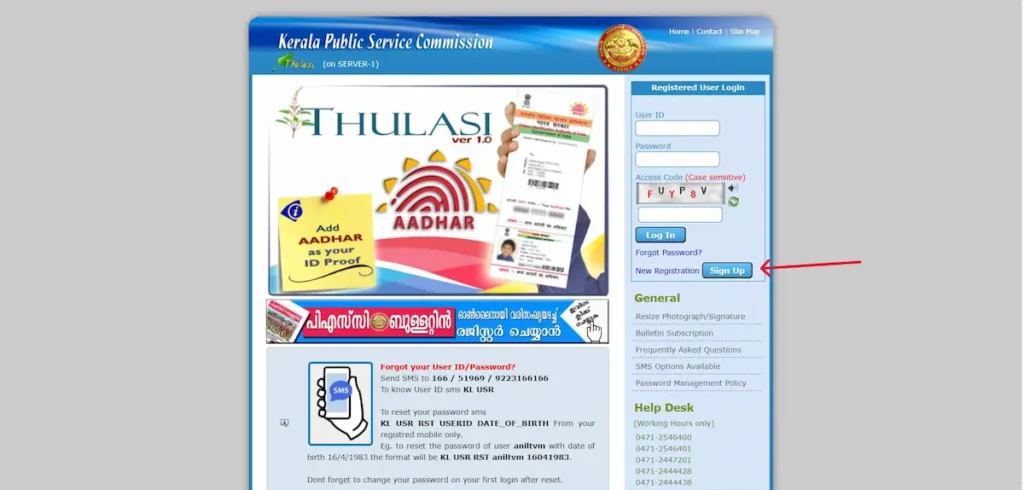
- Open the portal and press Sign Up. The New Registration form opens.
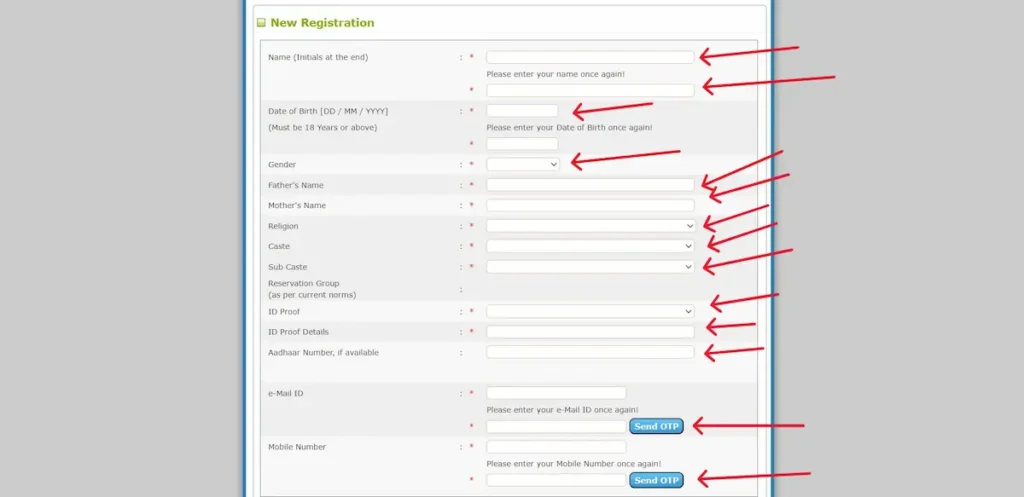
- Enter your Name (initials at the end) and type it again in the box below to confirm.
- Enter your Date of Birth (you must be 18 or above) and type it again to confirm.
- Select your Gender, and fill in Father’s Name and Mother’s Name.
- Choose your Religion, Caste, and Sub Caste. The Reservation Group is set as per current norms.
- Select your ID Proof and enter the ID Proof Details. Aadhaar Number is optional here — the form marks it “if available.”
- Enter your e-Mail ID (twice) and press Send OTP, then enter your Mobile Number (twice) and press Send OTP. Verify both with the codes you receive.
- Continue to upload your photo and signature in the set format (150×200 px photo, 150×100 px signature, JPG, max 30 KB each — see the next section), agree to the declaration, then submit to complete your One Time Registration. (The exact label of the final button and the declaration wording are on the screen after this form — confirm them from that screen before you publish, so the word a user clicks matches exactly.)
The commission’s own instruction sheets for new and existing candidates are linked here: keralapsc.gov.in/otr-instructions-candidates
Documents, photo and signature requirements
Getting the photo and signature right is what keeps an application from being rejected, so match these exactly.
Photo: 150 px wide by 200 px high, JPG format, no more than 30 KB. Your name and the date the photo was taken must be printed at the bottom. Use a white or light background, keep your face and shoulders clear, and wear no cap or goggles. A photo is valid for 10 years, and a new profile needs a photo taken within the last 6 months.
Signature: 150 px wide by 100 px high, JPG format, no more than 30 KB, scanned and clearly visible.
Keep these ready before you start: a photo ID such as Aadhaar, Voter ID, PAN, or Driving Licence; your SSLC or 10th certificate for date of birth; your educational qualification certificates; a community or caste certificate where it applies; and a nativity certificate where it is required.
A photo missing your name and date, or saved in the wrong size, is one of the most common reasons applications are turned down.
Mandatory checks: Aadhaar and the 10-year photo rule
Two things in your profile can block an application if you miss them, so settle both before a notification’s last date.
Aadhaar: add your Aadhaar as an ID proof in your profile. Many posts ask for it, so adding it early saves you from a last-minute hold-up.
Photo validity: your profile photo is valid for 10 years. Once it passes that point, you may have to upload a fresh, correctly labelled photo before the portal lets you apply for a new post. If your apply option is unavailable, an expired photo is the first thing to check.
How to apply for a Kerala PSC post, and confirm it
Applying has two parts, and the second one is where people slip: you apply, then you confirm.
- Log in and open Notifications.
- Pick a post and check your eligibility against its category number.
- Press Apply Now. Your saved profile details fill in automatically.
- Submit the application and note the acknowledgement.
- Confirm your participation before the deadline. KPSC counts an application only after you confirm it, and an unconfirmed application can be dropped.
The official confirmation steps are here: keralapsc.gov.in/confirmation-procedures
Download your PSC Thulasi hall ticket
You download your hall ticket, called the Admission Ticket, from inside your own profile, usually a week or two before the exam.
- Log in to your profile.
- Open the Admission Ticket (hall ticket) section.
- Select the exam you are sitting.
- Download the PDF and print it.
If your hall ticket is not showing, check three things: that your application was both submitted and confirmed, that your browser is not the problem (clear the cache or try another browser), and that the exam date has actually been published on the schedule.
Check results, short lists and ranked lists
These are two different things kept in two different places, which is why people miss them.
Your personal marks sit inside your profile and on the official marks portal: psc.kerala.gov.in/onlinereact
Short lists and ranked lists are published on the main commission site:
https://keralapsc.gov.in/shortlists
https://keralapsc.gov.in/rankedlist
A ranked list’s validity period changes by post and category, so read the specific notification for the exact dates instead of relying on a single number you saw elsewhere.
Latest Kerala PSC notifications
New job notifications, last dates, and confirmation deadlines are published by the commission and change often. Check the official list below before applying, and confirm every last date against the source.
Use this format for each entry, and keep it current:
- [Post name] — Category [No.] · Notification date: [date] · Last date to apply: [date] · Confirmation deadline: [date] · [link to the official notification]
When in doubt, the official notifications page is the single source of truth for vacancies, gazette dates, and the exam calendar.
Syllabus and previous question papers
KPSC publishes a separate syllabus for each post, so prepare from the official postwise syllabus rather than a summarised version. To find yours, open the syllabus page and look up your post by its name or category number; the listing gives the exam pattern, including the prelims and mains structure where it applies.
Past papers help you see how questions are framed. The commission keeps an archive of previous question papers you can download for practice.
How to log out of PSC Thulasi safely
When you finish, use the Logout option in your profile menu, then close the browser. This matters most on shared or public computers, where leaving a session open lets the next person reach your account. Logging out properly protects your personal data and keeps your profile secure.
PSC Thulasi login problems and fixes
Most login trouble comes from a handful of causes, and each has a quick fix.
- “Your browser is not validating the data properly” (data validation error): close every tab where a PSC page is open, type your User ID and password by hand instead of using saved or autofilled details, refresh the captcha once, and try again in a private or incognito window.
- Forgot password: use the Forgot Password link on the login page and reset it with the OTP sent to your registered mobile number or email.
- Forgot User ID: contact the KPSC helpdesk during working hours to recover it (numbers below).
- Captcha not loading: refresh the captcha, clear your browser cache, switch off extensions, or try a different browser.
- Account locked: wait a while before trying again, then reset your password to regain access.
- Invalid User ID or password: check that Caps Lock is off, that there are no extra spaces, and that you have not mixed up the letter O with zero, or the letter l with the number 1.
- Portal slow during peak periods: traffic is heaviest near a last date. Try an off-peak time, and do not submit repeatedly, as that can lock the session.
Recover your password or User ID
Use the official routes only. For a forgotten password, the Forgot Password link on the login page resets it through an OTP to your registered mobile or email. For a forgotten User ID or a locked account, contact the KPSC helpdesk during working hours by phone or email (see below). Avoid third-party services that offer to recover your account; share your OTP and password with no one.
PSC Thulasi mobile access
The portal works in any mobile browser. Open thulasi.psc.kerala.gov.in/thulasi/ on your phone and sign in exactly as you would on a computer, with your User ID, password, and access code.
Be careful with apps. Several apps using the “PSC” or “Thulasi” name are made by private developers, not the commission, and some ask for your login details. Unless an app is clearly published by Kerala Public Service Commission, the mobile browser is the safe and reliable way in.
PSC Thulasi in Malayalam (മലയാളം)
കമ്മീഷന്റെ ഔദ്യോഗിക വെബ്സൈറ്റ് മലയാളത്തിലും ലഭ്യമാണ്: keralapsc.gov.in/ml. പ്രധാന ഘട്ടങ്ങൾ ചുരുക്കത്തിൽ:
- ലോഗിൻ: thulasi.psc.kerala.gov.in/thulasi/ തുറന്ന്, യൂസർ ഐഡി, പാസ്വേഡ്, ആക്സസ് കോഡ് നൽകി Login അമർത്തുക.
- രജിസ്ട്രേഷൻ (OTR): ആദ്യമായി അപേക്ഷിക്കുന്നവർ Sign Up അമർത്തി ഒറ്റത്തവണ രജിസ്ട്രേഷൻ പൂർത്തിയാക്കണം. ഇത് ഒരിക്കൽ ചെയ്താൽ മതി, ആജീവനാന്തം സാധുവാണ്.
- ഹാൾ ടിക്കറ്റ്: ലോഗിൻ ചെയ്ത ശേഷം Admission Ticket വിഭാഗത്തിൽ നിന്ന് അഡ്മിറ്റ് കാർഡ് ഡൗൺലോഡ് ചെയ്യാം.
- ഫലം: വ്യക്തിഗത മാർക്ക് പ്രൊഫൈലിലും psc.kerala.gov.in/onlinereact/ ലും, റാങ്ക് ലിസ്റ്റ് keralapsc.gov.in ലും പരിശോധിക്കാം.
Helpdesk and contact
For help with registration, login, or your application, reach the commission directly during working hours.
Phone: 0471-2546400, 0471-2546401, 0471-2447201, 0471-2444428, 0471-2444438 Email: kpsc.psc@kerala.gov.in Address: Kerala Public Service Commission, Thulasi Hills, Pattom Palace P.O., Thiruvananthapuram 695 004, Kerala
For in-person help or document verification, your nearest district office can assist.
About Kerala PSC and the Thulasi portal
The Kerala Public Service Commission is the state’s constitutional recruitment body, set up in 1956 and headquartered at Thulasi Hills, Pattom, Thiruvananthapuram. The Thulasi portal moved recruitment online, replacing the older system of paper forms and district-office submissions; One Time Registration has been the single sign-up route since 2012. The site is owned and maintained by the commission and was developed by C-DIT. The current Chairman is Dr. M. R. Baiju.
Frequently asked questions
What is PSC Thulasi?
It is the official Kerala Public Service Commission portal where candidates register, apply for state government jobs, download hall tickets, and check results, at thulasi.psc.kerala.gov.in/thulasi/.
What is the official PSC Thulasi address?
The login portal is thulasi.psc.kerala.gov.in/thulasi/ and the main site is keralapsc.gov.in. Both end in .gov.in.
How do I open My Profile?
Log in with your User ID, password, and access code; the My Profile dashboard opens right after you sign in.
Is registration free?
Yes. One Time Registration is free. Individual exams may carry an application fee that varies by category.
Do I register again for each post?
No. OTR is a one-time, lifetime registration. After that, you apply to any post using the same account.
Is the User ID the same as the OTR number?
Yes. Your User ID is your OTR number, and you use it across all KPSC services.
Why is my Apply option unavailable?
A common reason is an expired profile photo. A photo is valid for 10 years, and you may need to upload a fresh, correctly labelled one before you can apply.
How do I download the hall ticket?
Log in, open the Admission Ticket section, select your exam, and download the PDF. Tickets usually appear a week or two before the exam.
Where do I check results and rank lists?
Personal marks are in your profile and at psc.kerala.gov.in/onlinereact/. Short lists and ranked lists are published at keralapsc.gov.in.
How do I fix the data validation error?
Close all PSC tabs, type your details by hand without autofill, refresh the captcha, and use a private or incognito window.
How do I recover my password or User ID?
Use Forgot Password on the login page for a password reset. For a forgotten User ID or locked account, contact the KPSC helpdesk during working hours.
Is there a Malayalam version?
Yes. The commission’s site is available in Malayalam at keralapsc.gov.in/ml.